
Last Updated on September 27, 2026 by Ritwik B
Custom Dimensions & Metrics are one of the most powerful features in Google Analytics. They’ll allow you to see in-depth insights about your users & website. They are mostly used by advanced GA users but no worries…
In this article, we’ll focus on only on custom dimensions. Also, if its totally new to you or you have some implementation issues, then you’ll get an in-depth understanding of the concept & the setup process for your own website in no time. So let’s begin…
Index
1.) What Is Custom Dimension In Google Analytics?
2.) What Are The “Scopes” Available For The Custom Dimension?
3.) How To Setup Custom Dimension in Google Analytics 4?
- Step 1: Send the data via Google Tag Manager or gtag.js
- Step 2: Register the Custom Dimension in the GA4 Interface
4.) Which Google Analytics Reports Reflect The Custom Dimension Data?
5.) What Are The Limitations Of Custom Dimension In Google Analytics?
6.) Awesome Custom Dimension Examples To Get Started.
7.) Conclusion & Final Thoughts.
What is
To understand what is a custom dimension, let’s first understand “WHAT IS DIMENSION” in google analytics.
As Avinash Kaushik puts it
A Dimension is an “ATTRIBUTE” of the visitor to your website.
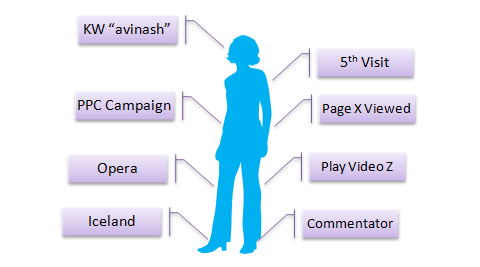
So dimension can be anything related to the website user like
- City
- Device
- Traffic Source
- Search Term
- Count of Session
- Browser
- Demographics (Age/Gender)
- etc, etc
By DEFAULT, there are around 100+ default dimension available in Google Analytics 4. You can check the whole list of dimension & metrics here.
So, you might ask if there are already so many dimensions in built-into Google Analytics, then why do we need more dimensions. ?? That’s exactly why custom dimensions were introduced.
As per google docs,
Custom Dimensions & Metrics are like default dimensions and metrics in your Analytics account, except you create them yourself. You can use them to collect and analyze data that Analytics doesn’t automatically track.
How cool will it be, if you have an ecommerce site & you are comparing transaction rate based on “Logged In” & “Logged Out” OR “Weekdays” vs “Weekend” users like below:
But there’s more…
You can define your own custom dimensions like
- Logged In Users & Logged Out Users
- Users who Comment & Users who share
- Article Author, Article Category & Article Word Count
- High Value Purchased Users, Medium Value Purchased Users, etc
- & more…
We’ll look at many examples from basic to advanced in a while. But first, let’s understand the “Scope” of the dimension, which is critical when implementing any custom dimension in GA4.
What are the
Every dimension in Google Analytics has a scope. It also defines how all the reports are processed.
*Note for UA Users: Universal Analytics had Hit, Session, User, and Product scopes. GA4 is entirely event-based, so the scoping has changed significantly. There is no native “Session” custom dimension scope in GA4.*
GA4 Custom dimensions currently has 3 primary scopes:
- Event level
- User level
- Item level
By selecting a “Scope”, you are telling google analytics on how to process a certain “custom dimension” value for reporting. Let’s take a look at a few real-world examples.
Example #1: Event-level scope
Let’s say, you want to define a custom dimension as “Article Author“, so whenever the user reads an article by, say Author-X, the pageview hit should contain the custom dimension information like the Author Name (Author X). So the Scope for “Article Author” will be “Event-Level” Scope.
Example #2: User-level scope
Say, you define a custom dimension as “User Purchase Value“, so whenever the user makes a transaction of 500$, we will send all the subsequent hits for that user with custom dimension information like “$500-$1000 purchasers”. So the Scope for “User Purchase Value” will be “User-Level“. (also known as user property)
Example #3: Item-level scope
Say, you define a custom dimension as “Product Color“, so whenever the user views or purchases a product with color “blue”, you will send the hit with product level custom dimension value as “blue”. So the Scope for “Product Color” will be “Item-Level“.
How To Setup Custom Dimensions in Google Analytics?
Setting up custom dimensions in GA4 is a 2-step process. In UA, you just sent the data to a dimension index (like `dimension1`). In GA4, you send a named parameter (e.g., `author_name`) and then register that parameter in the GA4 interface.
Let’s first go through the initial setup in the google analytics.
Step – 1: Send the Data to GA4
Option A: Google Tag Manager Implementation
GTM is the easiest way to track custom dimensions.
- Capture the Data: Create a Data Layer Variable (or other variable) in GTM to capture your custom value (e.g., `{{Author Name}}`).
- Add to GA4 Event Tag: Open your GA4 Event Tag
- Event Parameters: Under “Event Parameters”, add a new row.
- Parameter Name: Type a lowercase name with underscores (e.g., `author_name`).
- Value: Insert your GTM variable (e.g., `{{Author Name}}`).
- Trigger: Assign the relevant trigger (e.g., a specific Data Layer Event or Page View) and publish.
Option B: Global Site Tag (gtag.js) Implementation
If you aren’t using GTM and code directly on the site, you pass the custom parameter directly inside your event hit.
*Note: You no longer need `custom_map` like you did in UA!*
**Sending a Single Parameter:**
“`javascript
// Sends an event that passes ‘author_name’ as a parameter.
gtag(‘event’, ‘article_view’, {
‘author_name’: ‘Ritwik B’
});
“`
**Sending Multiple Parameters:**
“`javascript
// Sends multiple parameters in one event.
gtag(‘event’, ‘article_view’, {
‘author_name’: ‘Ritwik B’,
‘article_category’: ‘SEO’
});
“`
*(Note: `analytics.js` is deprecated and does not support GA4).*
Step – 2: Register the Custom Dimension in the GA4 Interface
Even if you are sending the data perfectly via GTM or `gtag.js`, it will not show up in your reports until you register it.
1. Go to your GA4 Admin section.
2. Under the Data display column, click Custom definitions.
3. Click the Create custom dimensions button.
4. Fill in the details:
* Dimension name: The readable name for your reports (e.g., “Article Author”).
* Scope: Select Event, User, or Item (e.g., “Event”).
*Description: Optional, but good for your team.
* Event parameter: This MUST exactly match the parameter name you used in GTM or gtag.js (e.g., `author_name`).
5. Click Save.
*[Insert GA4 Custom Definition Screenshot Here]*
*(Note: It usually takes 24-48 hours for the data to start populating in your reports).*
Which Reports Reflect The Custom Dimensions Data?
Custom dimensions are available in following reports
- Default reports in Google Analytics 4 (as a secondary dimension)
- Explorations (Custom Reports)
- Google Analytics Reporting API / BigQuery
Note: Not all dimensions & metrics are compatible with each other as it depends on their scope.
Default reports in Google Analytics (as a secondary dimension)
You can use the secondary dimension drop-down (the “+” icon) in most standard Reports (like Pages and screens, or Events) to view your custom dimensions alongside default data.
Explorations (Custom Reports)
Explorations are where custom dimensions shine in GA4. You can create Free Form, Funnel, or Path explorations and drop your custom dimension in as a Row, Column, or Filter. Just click the “+” next to “Dimensions” in the Variables tab to import it.
Google Analytics Reporting APIs
If you use the API or export your data to BigQuery, your custom dimensions are passed natively as event parameters (`event_params.key` and `event_params.value.string_value` in BigQuery).
What are the limitations of Custom Dimensions?
While GA4 offers much more flexibility with parameters, there are strict limits to how many you can register as Custom Dimensions for reporting:
For a Standard GA4 Property:
- Event-scoped custom dimensions: 50
- User-scoped custom dimensions: 25
- Item-scoped custom dimensions: 10
For a GA4 360 Property:
- Event-scoped: 125
- User-scoped: 100
- Item-scoped: 25
IMPORTANT: Custom dimensions once created CANNOT be deleted““““““““““““““““““““““““““““““““““. They can only be archived. Archiving frees up a slot, but you cannot reuse the exact same parameter name. Therefore, plan carefully and only register parameters you absolutely need for reporting!
Some Awesome Custom Dimension Examples To Get Started
1. ) Purchasers/Leads (User Level Scope)
Personally, I prefer to create this one on most of the industries. Once someone purchases your product or submits a lead, you can assign a custom dimension as “Yes” or “No” or better way I prefer is to put the users in most recent purchase value bucket as
- $1 – $500
- $500 – $1000
- $1000 – $5000
- $5000+
So when someone transacts within the $500 – $1000 range, send the custom dimension value as “$500-$1000” & so on…
You can do the same with Leads & assign a lead value bucket.
2.) Engagement – Shares, Comments (Event or User Level Scope)
When someone shares or comments on your blog post, fire an event with a custom dimension. You can track this at the Event level (`interaction_type`: “share”), or assign them a User property as a “Commenter” to track their long-term behavior.
You can then analyze the behavior of these 3 different cohorts.
3.) Subscribers (User Level Scope)
You can track “subscribers” custom dimension with the value “yes” & “no” to see which one performs the best. Simply trigger it when the user subscribes to your newsletter.
4.) Logged In Status (Event Level Scope)
If your site has login functionality, you can pass `logged_in_status` (“yes” or “no”) on your events to analyze how behavior differs between authenticated and anonymous browsing.
5.) Article Author (Event Level Scope)
If you have a blog site with various authors, then you can pass the name of the author as custom dimension when someone views the article.
This will allow you to see the engagement on different article writers.
6.) Article Category (Event Level Scope)
If you have different categories in the blog, you can pass the category name as a custom dimensions to see which category gets more engagement.
Pass the category name (e.g., “SEO”, “Analytics”) as a custom dimension to see which blog topics resonate most with your audience
9.) Article Word Count (Event Level Scope)
You can create word count buckets & pass that as custom dimension to see how users engage with your content based on your article word count. Here’s an example:
- >500
- 500-1000
- 1000-2000
- 2000+
10.) Product Size Or Color (Product Level Scope)
You can send additional features like Product size or color as custom dimension value. It can help you analyze your website users more in-depth based on which ones are viewed the most, or added to cart & so on…
11.) Product Size Or Color (Item Level Scope)
You can send additional features like Product size or color as custom dimension value. It can help you analyze your website users more in-depth based on which ones are viewed the most, or added to cart & so on…
12.) Product Availability (Item Level Scope)
You can send values like “In stock”, “out of stock” & so on… to analyze which products are viewed or added to cart the most, which will help you stock the right products.
13.) Product Margin (Item Level Scope)
You can calculate the product margin & send it as a custom dimension. It will help you analyze the ROI for the different campaigns & more.
Conclusion & Final Thoughts
Custom dimensions are powerful & they’ll take your analysis to the next steps. Things you should do before creating a custom dimension is plan out the things.
Identify your business industry/category & decide which dimension might help you uncover more insights. It shouldn’t be a generic dimension but a very specific one.
If you want to overcome the custom dimension limit, you can concatenate the values sent during a single hit.
For Eg: “value1_value2_value3….”.
And lastly. do comment which custom dimensions have you implemented or issues faced during the implementation. 🙂