
Live Data: Real-Time Google Sheets Sync
Welcome to the Live Data feature! This powerful tool allows you to connect your Shopify store directly to Google Sheets. Once connected, every new order placed on your store will be instantly and automatically synced to your spreadsheet in real-time.
No more manual data entry or downloading CSVs!
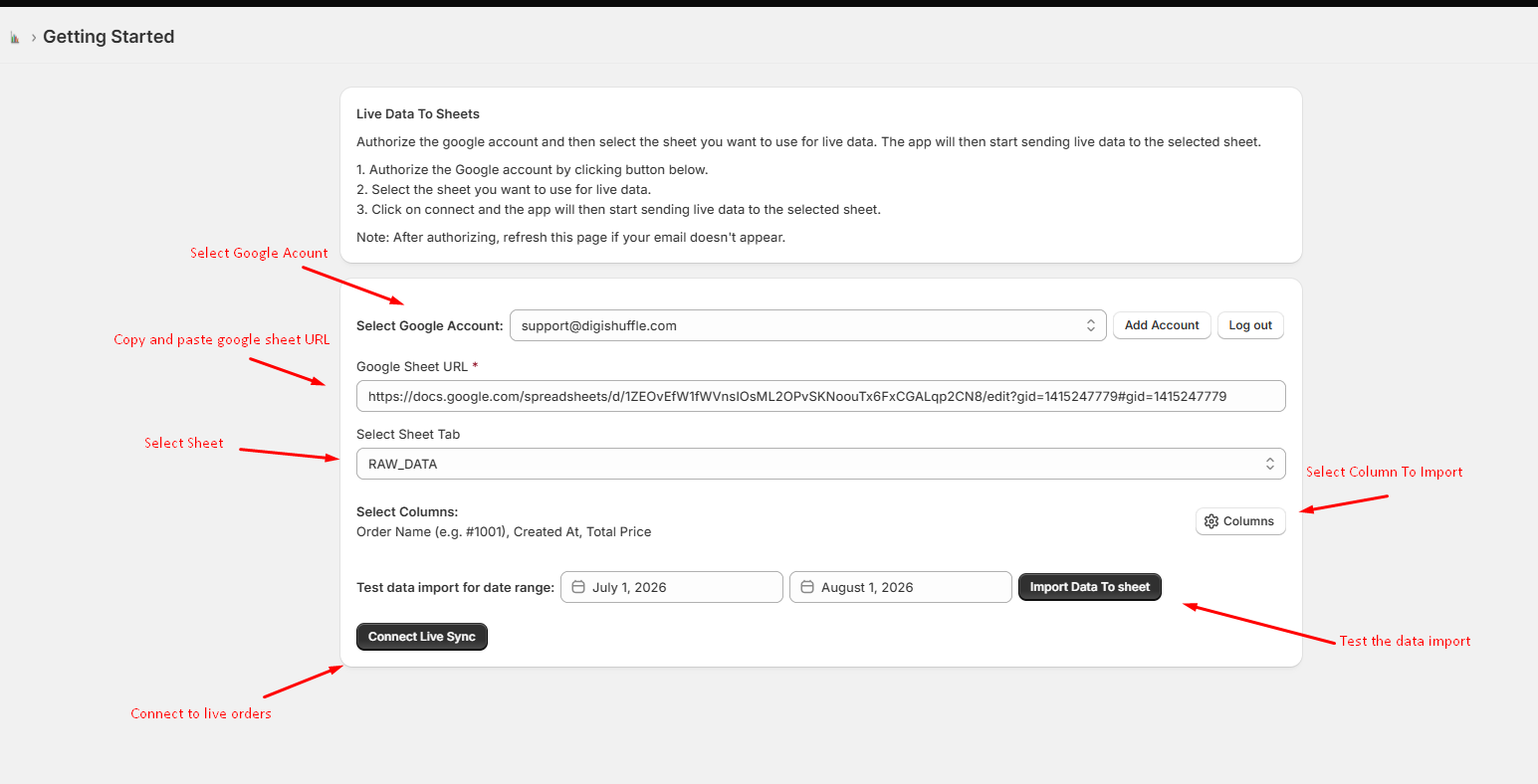
Step 1: Connect your Google Account
Before we can send data to your spreadsheets, you need to authorize the app.
- Navigate to the Live Data tab in the app.
- Under the Connect Account section, click the Continue with Google button.
- A popup will appear. Select your preferred Google account.
- Grant the requested permissions so the app can view and edit your Google Sheets.
- Once authorized, you’ll see your email address populated in the dropdown, confirming you are securely connected!
Step 2: Set up your Google Sheet
Next, tell the app exactly where you want your order data to go.
- Open Google Sheets and create a new, empty spreadsheet (or open an existing one).
- Copy the full URL of the spreadsheet from your browser’s address bar.
- Back in the app, paste that URL into the Google Spreadsheet URL field.
- The app will automatically fetch the available tabs in your spreadsheet. Use the Google Sheets Tab dropdown to select the specific worksheet (e.g.,
Sheet1) where you want the data to live.
✨ Pro Tip: If you select a completely blank spreadsheet tab, the app will automatically generate beautifully formatted column headers for you on the very first sync!
Step 3: Configure your Columns
You are in full control of what data gets exported.
- Locate the Select Columns section.
- Click the Columns (⚙️ Settings) button.
- A checklist will appear containing all available order data fields (Order Name, Total Price, Customer Email, Shipping Address, etc.).
- Check the boxes next to the data points you care about.
- You’ll see a live preview of your chosen columns right on the page!
Step 4: Test & Go Live!
Now it’s time to test your setup and activate the real-time sync.
1. Run a Test Import
Before turning on the live sync, it’s highly recommended to test your connection:
- Click the Import Data to sheet button.
- The app will grab your most recent orders and push them to your Google Sheet.
- Check your Google Sheet to verify that the columns look exactly how you want them!
2. Connect the Live Webhook
Once you are happy with the test data:
- Click the primary Connect button.
- You’ll see a success notification.
- You are now live! Whenever a customer completes checkout on your store, a new row will instantly appear at the bottom of your Google Sheet.
Managing Your Connection
- Changing Columns: If you ever want to add or remove columns, simply update your selections in the Columns popover. The app will automatically use your new layout for all future orders.
- Disconnecting: Need to pause the sync? Just click the Disconnect button. No further orders will be synced until you choose to connect again.